

Guide to Updating NewsPro
Keeping your NewsPro platform updated is crucial for optimal performance, security, and accessing the latest features. This guide will walk you through the steps to update NewsPro on your server.
Why Update NewsPro?
Regular updates offer:
- Enhanced security to protect against vulnerabilities.
- Improved performance and speed.
- Access to new features and functionalities.
- Bug fixes and stability improvements.
Pre-Update Preparations
- Backup Your Site: Before updating, back up your entire site, including the database and files, to ensure you can restore it if needed.
- Read the Release Notes: Review the release notes for the new version to understand the changes and improvements, helping you anticipate any necessary adjustments.
Updating NewsPro
Step 1: Check for Updates
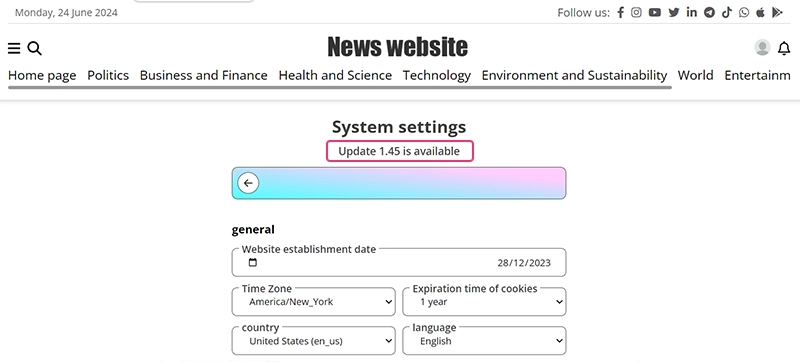
- Go to the System settings page in your NewsPro dashboard:
https://www.example.com/dashboard/settings. - Look for an update notification under the page header, such as "Update 1.50 is available".
- If an update is available, click the update link to proceed to the updates page:
https://www.example.com/dashboard/updates.
Important: a version update will only appear if there is one, if nothing appears, you are probably up to date.
Step 2: Review Update Information
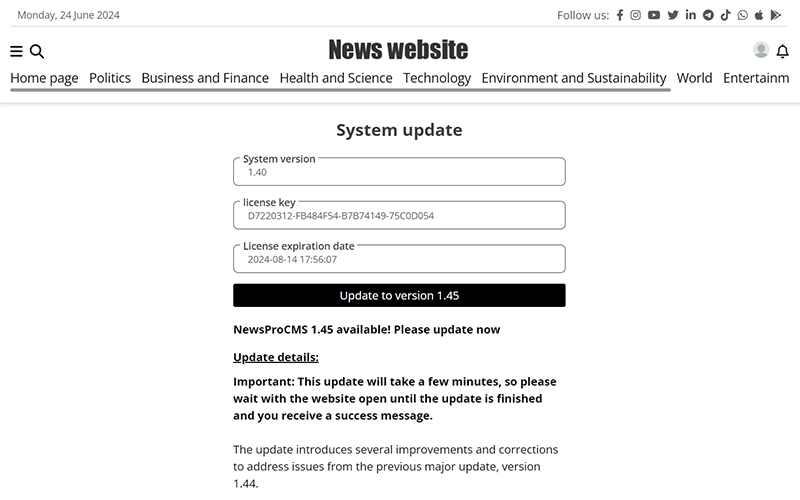
- On the updates page, verify the current system version and license key details.
- Review the update information provided.
Step 3: Perform the Update
- Click the Update button.
- Wait for the update process to complete, keeping the website open until you see the success message: "The update has been installed successfully!"
- After the update, verify that your site is functioning correctly.
Post-Update Tasks
- Test Your Site: Thoroughly test your site's features and functionalities to ensure everything works as expected.
Troubleshooting
If you encounter issues during or after the update:
- Restore Backup: If something goes wrong, restore your site using the backup created before the update process.
- Consult Documentation: Refer to the official NewsPro documentation for troubleshooting tips and common issues.
- Contact Support: If you're unable to resolve the issue, contact NewsPro support for assistance.
By following these steps, you can ensure that your NewsPro platform remains secure, fast, and equipped with the latest features.


